
Was bedeutet „automatische Updates“ bei WordPress?
Automatische Updates bedeuten, dass WordPress bestimmte Aktualisierungen selbstständig durchführt, ohne dass du manuell eingreifen musst.
Die Funktion wurde mit Version 3.7 eingeführt und seitdem kontinuierlich erweitert.
Heute können nicht nur Core-Updates, sondern auch Plugins und Themes automatisch aktualisiert werden.
Gerade für Webseitenbetreiber, die wenig Zeit oder technisches Know-how mitbringen, klingt das nach einer praktischen Lösung.
Doch bevor du automatische Updates aktivierst, solltest du genau wissen, was eigentlich alles automatisch aktualisiert werden kann und was nicht.
Denn nicht jede Aktualisierung funktioniert gleich und bringt die gleichen Risiken oder Vorteile mit sich.
Aber schauen wir uns die verschiedenen Arten von Updates in WordPress doch einfach im Detail an.
Arten von Updates
Core-Updates: Sicherheits‑ und Wartungsupdates vs. Major-Versionen
Core-Updates betreffen das eigentliche WordPress-System, also das CMS selbst.
Es wird zwischen zwei Arten unterschieden:
Sicherheits- und Wartungsupdates (auch Minor-Releases genannt) und sogenannten Major-Versionen.
Sicherheits- und Wartungsupdates schliessen in der Regel bekannte Sicherheitslücken oder beheben kleinere Fehler.
Diese Minor-Updates laufen ab Werk automatisch, ohne dass du als Webseitenbetreiber etwas tun musst.
Das ist sinnvoll, schliesslich geht es hier um den Schutz deiner Website und die grundlegende Stabilität im Betrieb.
Wenn man diese Updates ignoriert oder deaktiviert, steigt das Risiko deutlich, dass Sicherheitslücken offen bleiben – im schlimmsten Fall endet das in einer gehackten WordPress Website.
Bei Major-Versionen sieht es anders aus.
Diese Updates bringen oft neue Funktionen, Designänderungen oder tiefgreifende technische Anpassungen mit sich.
Solche Updates werden standardmässig nicht automatisch installiert.
Warum?
Weil sie potenziell Kompatibilitätsprobleme verursachen können, etwa mit Plugins oder Themes, die noch nicht auf die neue Version vorbereitet sind.
Du entscheidest also selbst, ob du solche umfangreichen WordPress Updates manuell durchführen oder die automatischen Updates dafür aktivieren möchtest.
Plugin-Updates: Repository vs. Premium
Auch Plugins lassen sich in WordPress automatisch aktualisieren.
Seit Version 5.5 kannst du in der Plugin-Übersicht gezielt festlegen, welche Plugins automatisch aktualisiert werden sollen.
Dabei ist es egal, ob es sich um ein kleines Sicherheitsplugin oder ein komplexes SEO-Tool handelt, das Update läuft im Hintergrund, sobald eine neue Version verfügbar ist.
Wichtig ist jedoch die Unterscheidung zwischen kostenfreien Plugins aus dem offiziellen WordPress-Repository und Premium-Plugins von externen Anbietern.
Bei Premium-Plugins ist nicht garantiert, dass die automatische Aktualisierung reibungslos funktioniert.
Oft sind zusätzliche Lizenzschlüssel, eigene Updater oder sogar manuelle Downloads erforderlich.
Ausserdem kann es vorkommen, dass neue Versionen noch nicht ausreichend getestet wurden, wodurch das Risiko für Fehler oder Sicherheitslücken steigt.
Ein weiteres Problem:
Automatische Plugin Updates könnten Funktionen auf deiner Website verändern oder sogar deaktivieren, wenn z. B. eine neue Version nicht mit deiner aktuellen WordPress Version oder PHP Version kompatibel ist.
Deshalb solltest du automatische Plugin Updates nur für stabile, regelmässig gepflegte Erweiterungen aktivieren und bei kritischen Tools lieber manuell prüfen.
Theme-Updates: Design und Darstellung
Auch Themes lassen sich automatisch aktualisieren, zumindest, wenn du ein Theme aus dem offiziellen WordPress-Verzeichnis nutzt.
Seit WordPress 5.5 kannst du über das Backend festlegen, ob du automatische Theme Updates aktivieren möchtest.
Das klingt praktisch, kann aber schnell zu Problemen führen.
Themes beeinflussen das gesamte Design deiner Website und oft auch Funktionen wie Navigation, Widgets oder Ladeverhalten.
Ein fehlerhaftes Update kann das Layout deiner Website zerschiessen oder CSS-Anpassungen überschreiben.
Besonders heikel wird es, wenn du direkt am Theme gearbeitet hast und keine Child-Themes nutzt.
In diesem Fall gehen eigene Änderungen beim automatischen Theme Update verloren.
Bei Premium-Themes gelten ähnliche Einschränkungen wie bei Plugins:
Manche Anbieter haben eigene Update-Systeme oder verlangen manuelle Downloads.
Auch hier ist Vorsicht besser als blinder Aktionismus.
Wenn du Theme Updates automatisieren willst, achte darauf, dass du immer ein Backup hast und im besten Fall ein Staging-System, um Änderungen zu testen.
Warum automatische Updates sinnvoll sein können
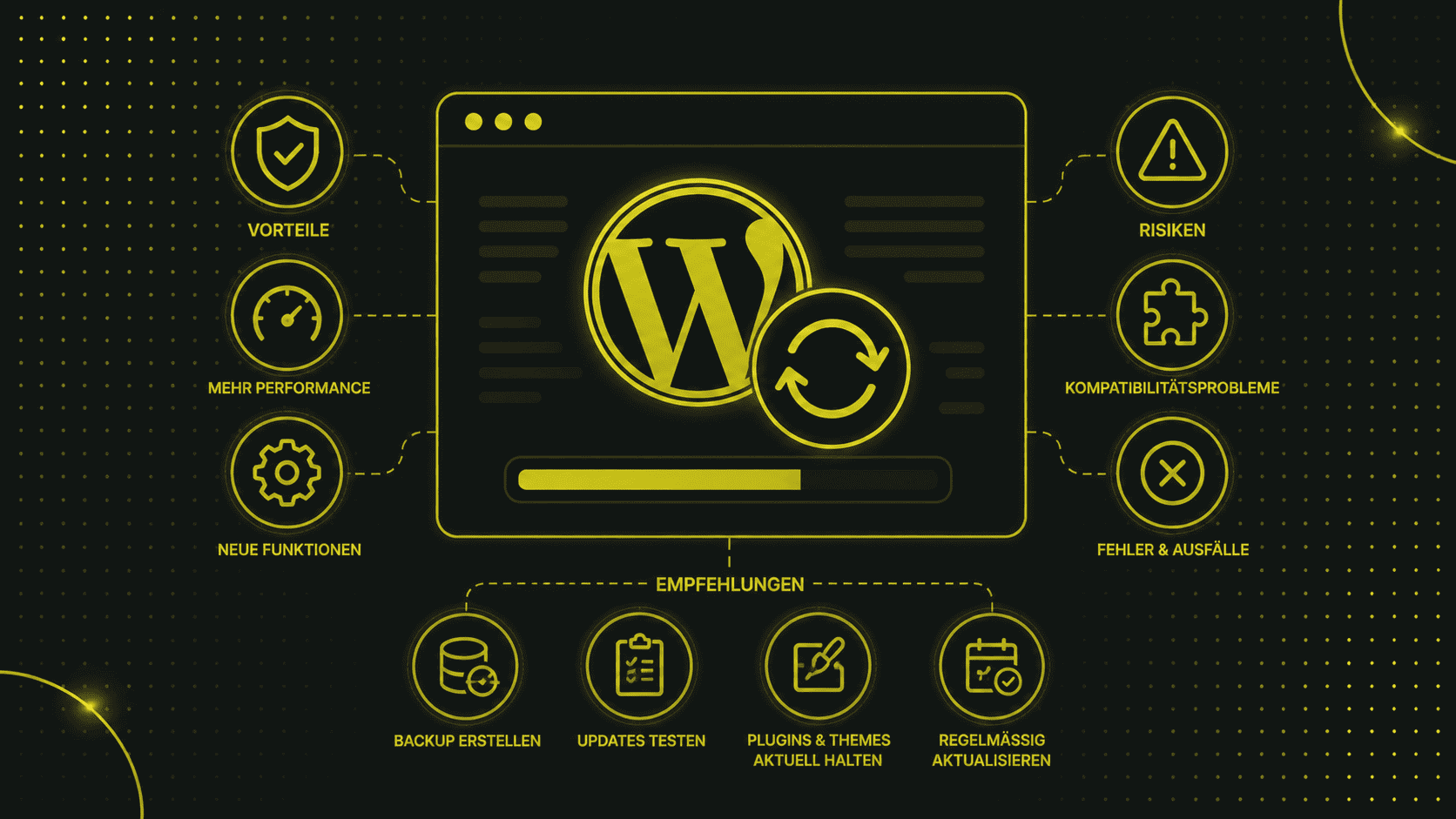
Automatische Updates in WordPress können den Betrieb deiner Website sicherer, stabiler und effizienter machen, vor allem dann, wenn du sie gezielt einsetzt.
In diesem Abschnitt zeigen wir dir, wann automatische WordPress Updates echte Vorteile bringen, warum sie für viele Webseiten sinnvoll sind und was sich hinter Funktionen wie Rollback oder Auto-Fixes genau verbirgt.
Sicherheit & Schutz
Sicherheitsupdates gehören zu den wichtigsten Gründen für automatische Updates in WordPress.
Jede WordPress Version bringt auch potenzielle Sicherheitslücken mit sich, vor allem dann, wenn du Plugins oder Themes nutzt, die nicht regelmässig gepflegt werden.
Automatische Updates schliessen diese Lücken schnell, bevor Angreifer sie überhaupt ausnutzen können.
Die Fixes werden zentral bereitgestellt und sofort eingespielt, ohne dass du eingreifen musst.
Das ist besonders bei kritischen Schwachstellen entscheidend, die öffentlich bekannt werden und bei tausenden WordPress Websites gleichzeitig auftreten.
Hinzu kommt:
Viele Sicherheitsprobleme entstehen nicht durch die Software selbst, sondern durch menschliches Versäumnis.
Ein vergessenes Plugin Update, ein veraltetes Theme oder eine nicht getestete neue Version, das alles sind Einfallstore für Angriffe.
Automatische Updates helfen dabei, solche Risiken zu minimieren.
Du reduzierst das Fehlerpotenzial und schützt deine Website vor Sicherheitsproblemen, die sonst leicht übersehen werden könnten.
Gerade wenn du nicht täglich an deiner Seite arbeitest, ist das ein echter Vorteil.
Zeit- und Arbeitsersparnis
Die laufende Wartung einer WordPress Website kann schnell zur Belastung werden, besonders wenn du mehrere Projekte betreust oder keine technische Unterstützung hast.
Manuelle Updates kosten Zeit, erfordern Aufmerksamkeit und laufen oft dann, wenn du sie am wenigsten brauchst.
Mit automatischen Updates kannst du genau das vermeiden.
Du musst nicht jeden Tag prüfen, ob eine neue Version von WordPress, ein Plugin Update oder ein Theme Update verfügbar ist.
Stattdessen übernimmt das System die Aktualisierung im Hintergrund, meist nachts oder zu Zeiten, in denen wenig Besucher auf der Seite sind.
So bleibt die Performance deiner Website stabil, und du kannst dich auf andere Aufgaben konzentrieren.
Vor allem für kleinere Unternehmen, Blogs oder Einsteiger ohne eigenes Entwicklerteam ist das eine grosse Erleichterung.
Die Automatisierung spart Zeit und senkt gleichzeitig das Risiko, dass du ein wichtiges Update zu spät oder gar nicht durchführst.
Sicherheitsnetz bei Fehlern (Rollback‑Funktion)
Ein häufiger Einwand gegen automatische Updates:
Was passiert, wenn etwas schiefläuft?
Genau dafür hat WordPress nachgelegt.
Ab Version 6.6 gibt es eine integrierte Rollback-Funktion, zumindest für Plugins.
Wenn nach einem automatischen Plugin Update ein schwerwiegender Fehler auftritt, erkennt WordPress das Problem und macht das Update rückgängig.
Gleichzeitig wirst du per E-Mail benachrichtigt, damit du weisst, was passiert ist.
Diese automatische Fehlererkennung und Rückabwicklung ist besonders hilfreich bei Plugins, die sich gegenseitig beeinflussen oder bei inkompatiblen Versionen.
Du musst nicht sofort eingreifen oder gar ein Backup einspielen, da das System sich selbst schützt.
Das gibt dir ein zusätzliches Sicherheitsgefühl, auch wenn du die Kontrolle über einzelne Updates teilweise abgibst.
Langfristig erhöht diese Funktion die Stabilität deiner Website, ohne dass du auf manuelle Eingriffe angewiesen bist.
Risiken und Nachteile automatischer Updates
Automatische WordPress Updates bringen viele Vorteile, keine Frage.
Aber sie sind nicht für jede Website die beste Option.
Gerade wenn deine Website komplex ist, viele Plugins oder Themes nutzt oder spezielle Anpassungen hat, solltest du auch die Risiken und Nachteile im Blick behalten.
Im Folgenden zeigen wir dir die häufigsten Probleme, die durch automatische Updates in WordPress entstehen können.
Kompatibilitäts‑ und Funktionsprobleme
Einer der grössten Nachteile automatischer Updates in WordPress ist die mögliche Inkompatibilität zwischen Plugins, Themes oder der aktuellen WordPress Version.
Ein Plugin Update kann plötzlich nicht mehr mit einem Theme funktionieren.
Ein Theme Update überschreibt individuelle Design-Anpassungen.
Ein Core Update bringt neue Funktionen, die noch nicht mit deiner aktuellen Plugin-Version getestet wurden.
Gerade bei Websites mit vielen WordPress Plugins oder stark angepassten Themes ist dieses Risiko hoch.
Ein automatisches Update kann nicht prüfen, ob alle Plugins oder Themes fehlerfrei zusammenspielen.
Das führt zu Layout-Fehlern, nicht mehr funktionierenden Buttons oder fehlenden Elementen auf der Webseite.
Wenn du eigene Änderungen im Code vorgenommen hast, etwa direkt im Theme oder in einem Plugin, besteht ausserdem die Gefahr, dass diese beim Update überschrieben werden.
Viele Webseitenbetreiber vergessen, dass WordPress Updates nur sicher sind, wenn sie mit einem passenden Setup und sauberen Strukturen einhergehen.
Ein individuelles System ist anfälliger für solche Probleme als eine Standardinstallation mit wenigen Erweiterungen.
Risiko von Ausfällen und White‑Screen‑Of‑Death
Fehlerhafte automatische Updates können im schlimmsten Fall dazu führen, dass deine Website gar nicht mehr erreichbar ist.
Ein typisches Szenario:
Du wachst morgens auf, willst etwas auf deiner Seite veröffentlichen und sie ist weiss.
Kein Inhalt, kein Zugriff, kein Login.
Der sogenannte White Screen of Death ist ein bekanntes Problem bei fehlerhaften Aktualisierungen in WordPress.
Ein einziges inkompatibles Plugin Update oder ein Fehler in einem Theme kann dafür sorgen, dass dein gesamtes CMS nicht mehr lädt.
Die Folge: Ausfallzeit, Stress und Umsatzverlust, vor allem wenn deine Website ein wichtiger Teil deines Geschäfts ist.
Hinzu kommt, dass die Fehlersuche oft sehr aufwendig ist.
Gerade ohne technisches Wissen oder aktuelle Backups wird die Wiederherstellung deiner Website schnell zur Herausforderung.
Besonders kritisch ist das bei Shops, Buchungsseiten oder Unternehmensseiten, bei denen jede Minute zählt.
Automatische Updates bieten in solchen Fällen keine Garantie für Stabilität, sondern erhöhen sogar das Risiko von Ausfällen, wenn nicht alles sauber vorbereitet ist.
Kontrollverlust & Timing
Ein weiterer Nachteil automatischer WordPress Updates:
Du hast keinen Einfluss auf den Zeitpunkt der Aktualisierung.
Das bedeutet: Ein Core Update oder Plugin Update kann mitten in der Nacht, am Wochenende oder sogar im Urlaub durchgeführt werden, ohne dass du es direkt merkst.
Wenn dabei Probleme auftreten, erfährst du es erst dann, wenn Benutzer dich auf Fehler aufmerksam machen oder du selbst deine Website checkst.
Das Timing ist gerade für Unternehmen, Blogs oder stark frequentierte Websites entscheidend.
Ein Update zur falschen Zeit kann Funktionen stören, Bestellungen verhindern oder die Benutzerfreundlichkeit deiner Seite stark beeinträchtigen.
Ausserdem kannst du automatische Updates nicht flexibel an geplante Änderungen anpassen.
Wenn du zum Beispiel die PHP Version deiner Website umstellen willst oder ein neues Feature live schalten möchtest, können parallele Auto Updates zu Problemen führen.
Auch wichtige Tests, etwa in einer Staging-Umgebung, sind bei automatischen Updates schwerer planbar.
Deshalb entscheiden sich viele Webseitenbetreiber bewusst gegen automatische Updates und setzen lieber auf manuelle Aktualisierungen.
Wann sind automatische Updates sinnvoll und wann nicht?
Automatische WordPress Updates sind eine praktische Funktion, aber sie passen nicht zu jeder Website.
Ob du automatische Updates aktivieren solltest, hängt stark von deinem Setup, deinem technischen Know-how und der Bedeutung deiner Website ab.
In diesem Abschnitt zeigen wir dir, für welche Webseiten automatische Updates empfehlenswert sind und wann du besser die Finger davon lässt.
Einsatz sinnvoll bei:
Automatische Updates sind besonders dann sinnvoll, wenn deine Website einfach aufgebaut ist und ohne viele Plugins oder individuelle Anpassungen auskommt.
Ein gutes Beispiel: ein persönlicher Blog, eine kleine Unternehmenswebsite oder eine Vereinsseite.
Wenn du vor allem Plugins aus dem offiziellen WordPress-Repository verwendest, regelmässig Backups machst und keine Änderungen am Theme oder Core-Code vorgenommen hast, sind automatische Updates eine echte Erleichterung.
In solchen Fällen minimieren automatische Updates Sicherheitsrisiken, sorgen für aktuelle Software und sparen Zeit bei der Wartung.
Du profitierst von automatischen Sicherheitskorrekturen, Plugin Updates und Theme Updates, ohne ständig alles selbst prüfen zu müssen.
Gerade für Webseitenbetreiber ohne Entwicklerteam oder technische Vorkenntnisse sind automatische WordPress Updates eine sinnvolle Option.
Sie halten deine WordPress Version, Plugins und Themes zuverlässig auf dem neuesten Stand und das ganz ohne manuellen Aufwand.
Auch bei Webseiten, die nicht geschäftskritisch sind oder bei denen kleinere Probleme kein grosses Risiko darstellen, lohnt sich der Einsatz.
Besser manuell bei:
Sobald deine Website komplexer wird, solltest du automatische Updates mit Vorsicht einsetzen oder ganz darauf verzichten.
Das gilt vor allem für Online-Shops, Buchungsplattformen, Portale mit Login-Funktionen oder stark angepasste Themes und Plugins.
Auch grössere Unternehmensseiten mit vielen Funktionen oder Integrationen zu Drittsystemen sind anfällig für Probleme bei automatischen Aktualisierungen.
Der Grund: Schon ein einziges fehlerhaftes Plugin Update oder ein inkompatibles Theme kann dafür sorgen, dass wichtige Funktionen deiner Website nicht mehr richtig arbeiten.
In solchen Fällen zählt jede Minute und ein Ausfall kann direkten Einfluss auf Umsatz, Kundenzufriedenheit oder die Wahrnehmung deiner Marke haben.
Ein weiterer Punkt: Wenn du mit einer Staging-Umgebung arbeitest, Tests durchführst oder eine bestimmte Update-Strategie hast, sind automatische Updates kontraproduktiv.
Sie nehmen dir die Kontrolle und können deine geplanten Abläufe durcheinanderbringen.
Auch wenn du eigene Änderungen im Theme, an Plugins oder im WordPress Core vorgenommen hast, sind automatische Updates ein Risiko, denn sie könnten deine Anpassungen überschreiben.
Für diese Art von Webseiten sind manuelle Updates in Kombination mit Backups, Versionstests und gezielter Durchführung die bessere Wahl.
Nur so kannst du sicherstellen, dass deine Seite nach jedem WordPress Update genauso funktioniert wie vorher oder sogar besser.
So verwaltest du automatische Updates gezielt
Automatische Updates in WordPress müssen nicht nach dem Alles-oder-nichts-Prinzip funktionieren.
Du kannst selbst entscheiden, welche Arten von Updates automatisch ablaufen sollen und welche du lieber manuell kontrollierst.
Gerade, wenn du WordPress professionell nutzt, lohnt sich eine fein abgestimmte Update-Strategie.
In diesem Abschnitt zeigen wir dir, wie du automatische WordPress Updates gezielt konfigurierst, welche Tools dir dabei helfen und welche Best Practices sich für Webseitenbetreiber bewährt haben.
Individuelle Konfiguration via wp-config.php und Filter
WordPress erlaubt es dir, automatische Updates direkt über die Datei wp-config.php zu steuern.
Mit bestimmten Konstanten kannst du dabei festlegen, ob du Core Updates komplett deaktivierst, nur Sicherheitsupdates erlaubst oder sogar alle automatischen Updates in WordPress freischaltest.
Ein Beispiel ist:

Diese Einstellung aktiviert sämtliche Core Updates, also auch Major-Versionen.
Alternativ kannst du sie auf false setzen, um automatische Updates zu deaktivieren, oder auf ‚minor‘, um nur Sicherheits- und Wartungsupdates zu erlauben.
Für noch mehr Kontrolle kannst du über Filter gezielt einzelne Update-Typen steuern.
Beispiele dafür sind:

Mit diesen Filtern entscheidest du zum Beispiel, dass Plugin Updates automatisch laufen, Theme Updates aber nicht.
Auch Übersetzungs-Updates lassen sich auf diese Weise konfigurieren.
Gerade für Entwickler, Agenturen oder Webseitenbetreiber mit technischen Kenntnissen ist das eine flexible Lösung, um automatische Updates an die jeweilige Website und den Betrieb anzupassen.
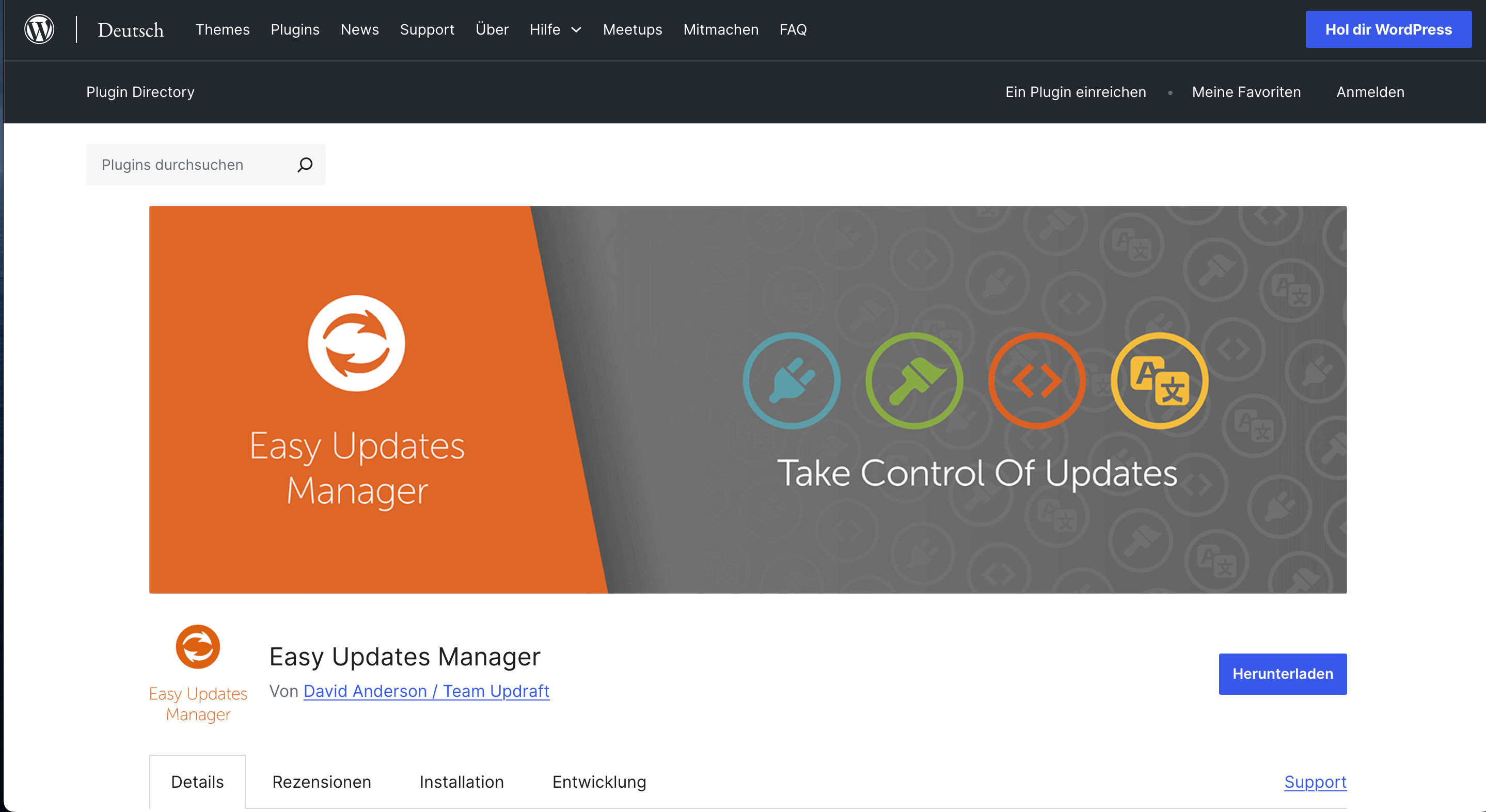
Nutzung von Plugins wie „Easy Updates Manager“
Wenn du lieber auf ein benutzerfreundliches Interface setzt, empfiehlt sich der Einsatz eines spezialisierten Plugins wie Easy Updates Manager.
Dieses Plugin erlaubt dir eine feine Steuerung aller automatischen Updates direkt im WordPress Backend.
Du kannst damit:
- Automatische Updates gezielt für einzelne Plugins oder Themes aktivieren oder deaktivieren
- Core Updates nach Typ steuern (Sicherheit, Major, Minor)
- Benachrichtigungen bei erfolgten Updates einrichten
- Protokolle einsehen, wann welches Update durchgeführt wurde
Das Tool ist besonders hilfreich für Betreiber mehrerer Websites oder für Agenturen, die konsistente Update-Regeln anwenden wollen, ganz ohne manuelle Anpassung im Code.
Easy Updates Manager bietet dir mehr Transparenz, bessere Übersicht und einfache Bedienung, auch wenn du kein Entwickler bist.
Backups und Staging als Sicherheitsmassnahmen
Egal, ob du automatische Updates aktivierst oder nicht:
Ein funktionierendes Backup-System ist Pflicht.
Denn selbst bei sorgfältiger Konfiguration kann ein Update in WordPress zu unerwarteten Problemen führen, vor allem bei komplexen Plugins und Themes.
Nutze deshalb ein Backup-Plugin oder die Backup-Funktion deines Hostings, um tägliche oder stündliche Sicherungen deiner Website anzulegen.
So kannst du jederzeit zur letzten funktionierenden Version zurückkehren.
Noch besser: Arbeite mit einer Staging-Umgebung.
Damit testest du neue WordPress Versionen, Plugin Updates oder Theme Updates vorab, ohne deine Live-Seite zu gefährden.
Nutze Staging aber nicht nur, um Layout- oder Funktionsfehler zu entdecken, sondern auch, um Ladezeiten nach Updates zu prüfen – denn ein Plugin- oder Theme-Update kann die Performance messbar verschlechtern.
Viele moderne Hoster wie Kinsta, Raidboxes oder SiteGround bieten Staging bereits integriert an.
So kannst du in Ruhe prüfen, ob die automatische Aktualisierung fehlerfrei durchläuft, bevor sie auf deiner eigentlichen Website wirksam wird.
Fazit & Empfehlungen
Automatische Updates in WordPress sind ein gutes Werkzeug, um deine Website sicher, aktuell und wartungsarm zu halten.
Gerade bei einfachen Setups mit wenigen Plugins und standardisierten Themes bieten sie einen echten Mehrwert.
Du profitierst von automatischen Sicherheitskorrekturen, verbesserter Stabilität und musst dich nicht täglich um manuelle Updates kümmern.
Für viele Betreiber von Blogs, kleineren Unternehmensseiten oder Informationswebseiten ist das eine klare Erleichterung.
Doch so praktisch automatische Updates auch sind, sie sind nicht für jede WordPress Website die beste Wahl.
Sobald deine Seite geschäftskritisch ist, viele Plugins und Themes nutzt oder individuelle Anpassungen enthält, solltest du genauer hinsehen.
Denn hier kann ein Update schnell zu Kompatibilitätsproblemen, Funktionsausfällen oder sogar zum Totalausfall führen.
In solchen Fällen ist es sinnvoll, gezielt zu automatisieren und nicht blind alles zuzulassen.
Unsere Empfehlung:
Aktiviere automatische Updates für Sicherheits- und Wartungsupdates (Minor Core Updates).
Sie bringen kaum Risiko, aber viel Schutz.
Bei Major-Updates, Plugin Updates oder Theme Updates solltest du hingegen genauer prüfen.
Nutze ein Staging-System, teste neue Versionen vorab und sorge für regelmässige Backups.
Wenn du automatische Updates aktivieren willst, nutze Tools wie „Easy Updates Manager“ oder passe die Einstellungen über wp-config.php und Filter gezielt an.
So behältst du die Kontrolle, minimierst Risiken und bleibst gleichzeitig auf dem neuesten Stand.
Und das mit einer Website, die stabil, sicher und performant läuft.
FAQ: Automatische WordPress-Updates: Vorteile, Risiken und Empfehlungen
1. Was genau wird bei automatischen Updates in WordPress aktualisiert?
Automatische Updates in WordPress betreffen verschiedene Bereiche:
Sicherheitsupdates im Core (Kern-Updates), Plugin Updates, Theme Updates und Übersetzungen.
Seit Version 3.7 werden Sicherheitskorrekturen automatisch eingespielt.
Ab Version 5.5 kannst du auch automatische Updates für Plugins und Themes aktivieren.
Diese Updates helfen, Sicherheitslücken zu schliessen, die Performance zu verbessern und deine WordPress Webseite auf dem neuesten Stand zu halten.
Die genauen Einstellungen kannst du individuell anpassen, entweder im Backend oder über die wp-config.php.
2. Welche Vorteile und Risiken haben automatische Updates für meine Website?
Der grösste Vorteil automatischer WordPress Updates ist die Sicherheit:
Sicherheitslücken werden schnell geschlossen, und die Webseite bleibt ohne manuellen Aufwand aktuell.
Das spart Zeit bei der Wartung, besonders für Blogs, kleinere Unternehmen und nicht-technische Webseitenbetreiber.
Gleichzeitig gibt es Risiken:
Kompatibilitätsprobleme mit Plugins oder Themes, mögliche Funktionsstörungen, oder sogar Ausfälle.
Deshalb sind Backups, Tests in Staging-Umgebungen und eine gezielte Update-Strategie Best Practices, um Auto Updates sicher zu nutzen.
3. Für welche Websites sind automatische Updates sinnvoll und wann sollte ich sie deaktivieren?
Automatische Updates sind vor allem für einfache Websites ohne komplexe Funktionen empfehlenswert.
Wenn du ein Blog, eine Info-Seite oder eine Firmenwebsite mit wenigen, gepflegten Plugins betreibst, profitierst du von der Benutzerfreundlichkeit und Erleichterung.
Bei komplexeren Websites, z. B. Online-Shops, Plattformen oder Unternehmen mit stark angepassten Themes und Plugins, solltest du Plugin Updates, Theme Updates und Core Updates manuell durchführen.
So minimierst du Risiken, schützt deine Funktionen und behältst die volle Kontrolle über jede neue WordPress Version und deren Auswirkungen auf dein CMS.